PyroBlox Fireworks How to Redeem Fireworks Playground Codes
Exact menu path, typing tips, and fixes when a code will not accept.
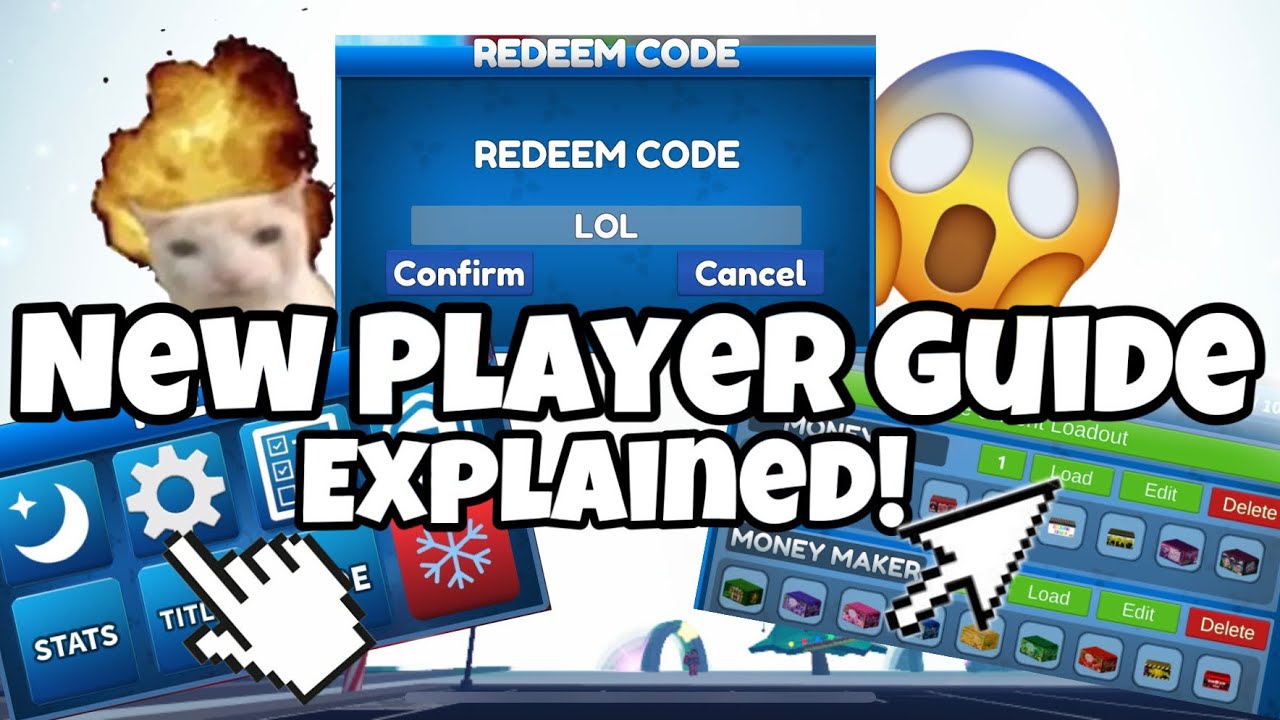
Redeeming Fireworks Playground codes takes under a minute once you know where the Codes button lives. This guide walks through the full flow on desktop and mobile, explains why codes fail, and shows what to do with the coins afterward so the free balance actually speeds up progression.
For the live list of strings and rewards, keep Codes Hub open in another tab. For spending priorities after a big redeem, use Earn Coins Fast.
Before you start
- Launch the real experience: Fireworks Playground by Pseudo Studio (place ID
10846691679). Fan copies and old beta links may not share the same code backend. - Stay online long enough for the HUD and bottom-left menu to finish loading. Redeeming during a half-loaded session can look like the Code button is missing.
- Copy codes from a trusted list — preferably the Codes Hub — so you do not pick up look-alike phishing links from random chat.
- Expect case-sensitive entry. Most active codes are ALL CAPS with no spaces (
125MVISITS,THANKSFORPLAYING).
Step-by-step on PC
- Join a public or private server and wait until you can move and open menus.
- Click the menu control at the bottom-left of the screen.
- Scroll the menu list until you see Code (wording may appear as Codes depending on UI version).
- Click it to open the redeem text box.
- Paste a code exactly, or type it with Caps Lock on.
- Press the confirm / redeem button.
- Watch for a success toast and an updated coin counter.
- Repeat for every active code on the Codes Hub table.
If the menu feels crowded, close shop and quest panels first so only the main menu stack is open.
Step-by-step on mobile
- Join the game and wait for touch controls to appear.
- Tap the bottom-left menu button (same placement as desktop).
- Scroll carefully — mobile lists are taller; the Code entry often sits near the lower half of the menu.
- Tap Code, paste from your clipboard, and confirm.
- Rotate to landscape if the keyboard covers the confirm button.
On small phones, paste is safer than typing. Long milestone codes like 600KMEMBERS are easy to mistype on a soft keyboard.
What a successful redeem looks like
After a valid unused code, you should see a confirmation and your coins jump by the listed amount (for example 500,000 for 125MVISITS or 1,000,000 for 100KLIKES / THANKSFORPLAYING when those still work). Coins are account-bound in that experience — you do not need to “collect” them from a chest.
Open the shop afterward and confirm the new balance before you buy. If the UI still shows the old total, close and reopen the shop panel once.
Common errors and fixes
Invalid code / does not exist
- Check spelling and capitalization.
- Remove spaces or hidden characters from a messy copy-paste.
- The code may have expired after a milestone window. Recheck Codes Hub.
Already redeemed
- Each code is typically once per account. Alts need their own redeem if you play on multiple accounts.
- You may have redeemed it months ago and forgotten.
Nothing happens when I press confirm
- Wait for full server load.
- Rejoin a fresh server.
- Avoid redeeming during heavy firework lag; finish or hide FX first (see Tips and Settings).
I cannot find the Code button
- Scroll the full menu — it is easy to miss on mobile.
- Make sure you are in Fireworks Playground, not a similarly named fireworks experience.
Code works for friends but not me
- They may be on a different account.
- Region or cache issues are rare; rejoining usually settles UI desync.
Redeem order that wastes less time
- Redeem the largest active rewards first (
100KLIKES,THANKSFORPLAYING,125MVISITS) so you notice balance changes immediately. - Sweep mid-tier codes (
600KMEMBERS,FREEDOMFUNDS,MINIGAMES). - Finish small codes (
BANANAS) and any older milestone strings you still want to test. - Immediately build or refresh a grind loadout instead of impulse-buying low-reward clutter.
After redeeming: first purchases that matter
Free coins feel huge on day one and tiny once you chase high-level shop locks. Convert the windfall into earning power:
- Sort the shop by reward and unlock fireworks you can actually place now.
- Keep a lighter and fuse on every loadout you save.
- Create multiple loadouts so you can place, swap, and light without staring at cooldowns — covered in Getting Started and Earn Coins Fast.
- Save show-only spectacle pieces for after your coin-per-minute loop is stable; then visit Make a Firework Show.
Optional Robux passes (Fuse Upgrade for Auto Link, Faster Placement, VIP’s reward bump) multiply grinding, but they are not required to benefit from codes.
Staying current without getting scammed
Pseudo Studio posts codes around Discord announcements, group milestones, and sometimes the game description. Bookmark Codes Hub and recheck after weekly updates. Never enter your Roblox password into third-party “code generator” sites, and never pay for a code string that is published free in official channels.
If you mainly came here for the button location, you are done — grab the active table next and clear every working code before your next grind session.
Frequently Asked Questions
Quick answers to the most common questions.
Where is the Codes button in Fireworks Playground?
Open the bottom-left in-game menu and scroll to Code / Codes. The control is easy to miss on mobile if you do not scroll the full list.
Why does my code say invalid?
Usually a typo, wrong capitalization, extra spaces, or an expired milestone code. Copy again from the Codes Hub and retry once.
Can I redeem the same code twice?
No. Codes are generally one redeem per account. Already redeemed means that account already claimed it.
Do I need Robux to redeem codes?
No. Codes are free. Robux only matters if you later buy optional gamepasses that speed up grinding.
Should I redeem before or after building loadouts?
Redeem first so the coins appear in your balance, then build high-reward loadouts immediately so the free coins start working for you.